JobNotes


How to add a job application in 3 steps
Only two fields are required: the job title and the company. You can fill in the rest later.
-
Step 1
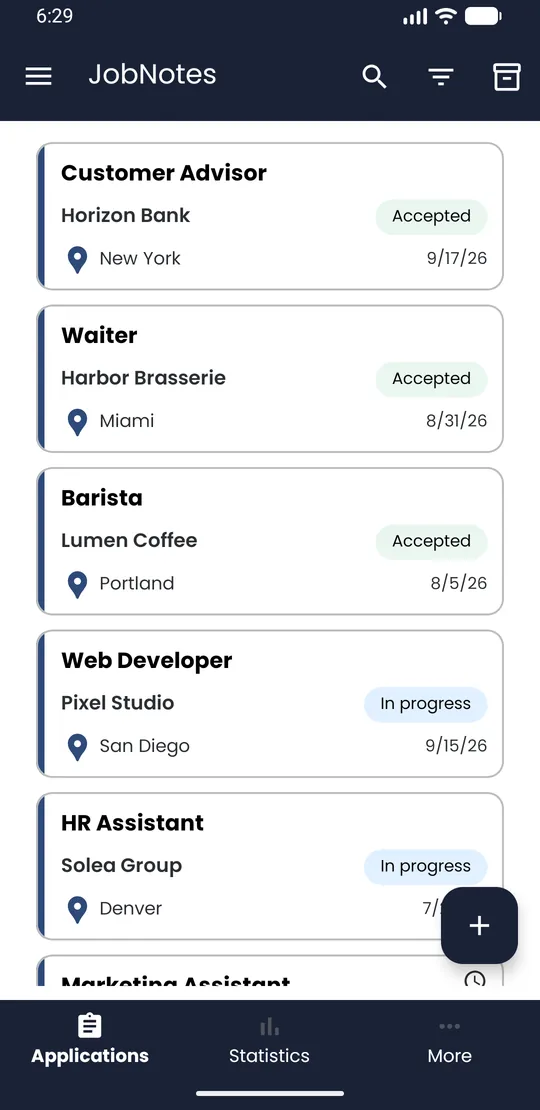
Tap the + button
On the Applications tab, tap the round + button at the bottom right of the screen. The Application Entry screen opens.
-
Step 2
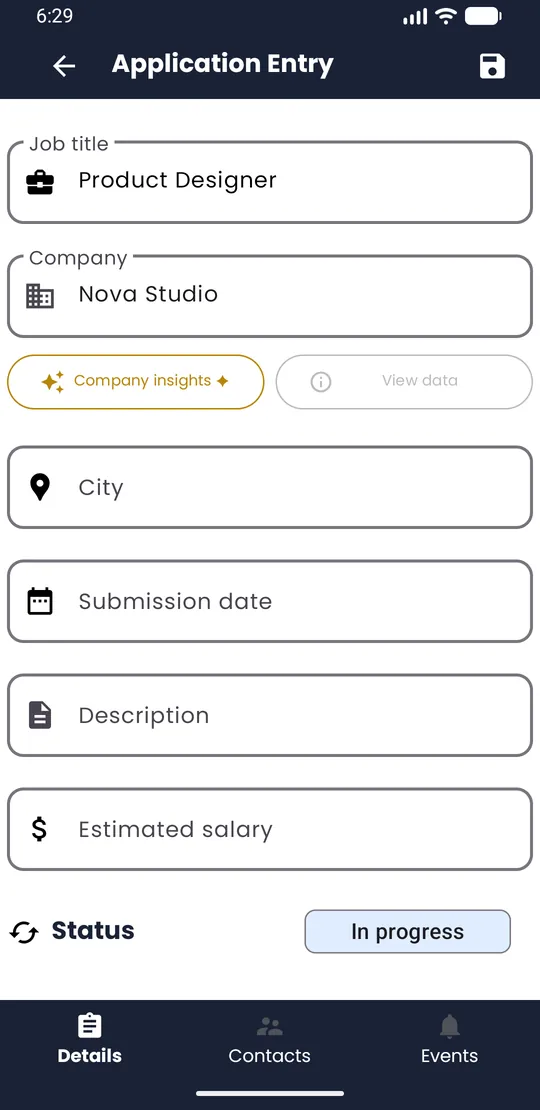
Enter the job title and the company
Fill in Job title and Company. If you like, add the City, the Submission date, a Description, the Estimated salary and the Contract type.
-
Step 3
Save
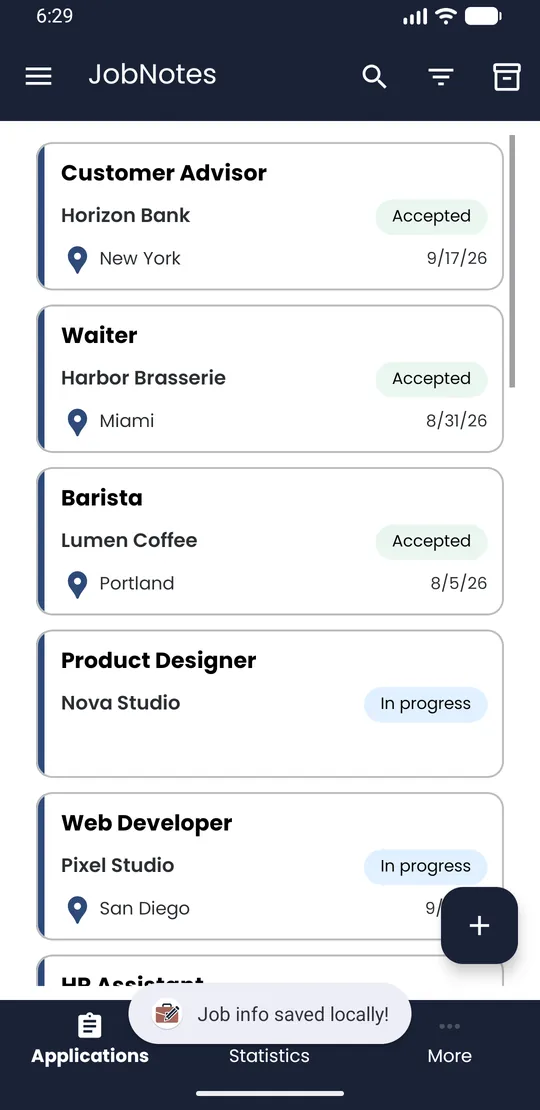
Tap the save icon at the top right. JobNotes shows “Job info saved locally!” and your application appears in the list.
💡 Tip · Went back without saving? JobNotes asks “Save ?”: tap Yes and nothing is lost.