JobNotes


How to update the status of an application
Each application has a status, so you see at a glance where you stand. A new application starts as In progress.
-
Step 1
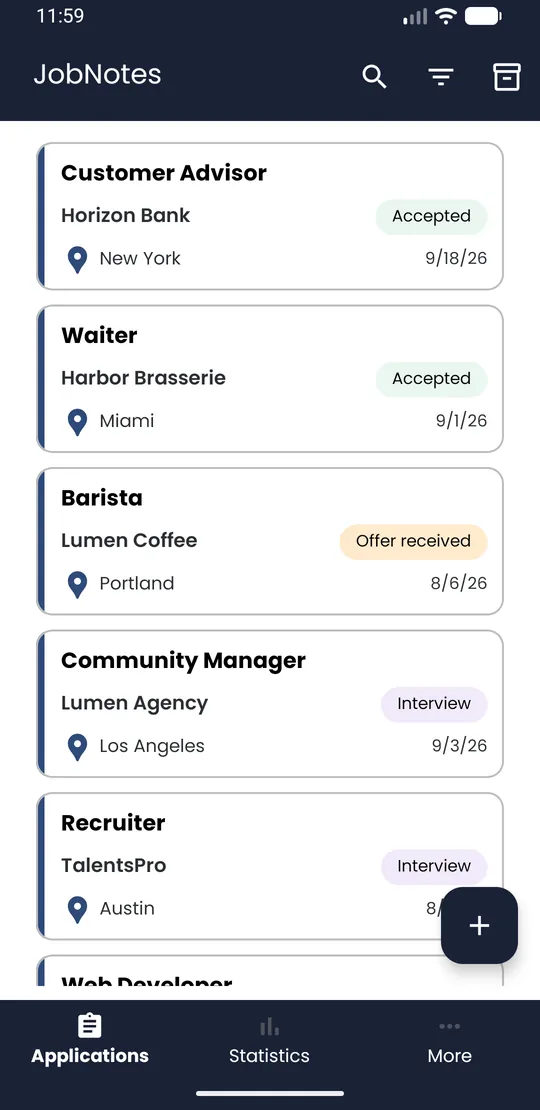
Open the application
In the Applications list, tap the application card.
-
Step 2
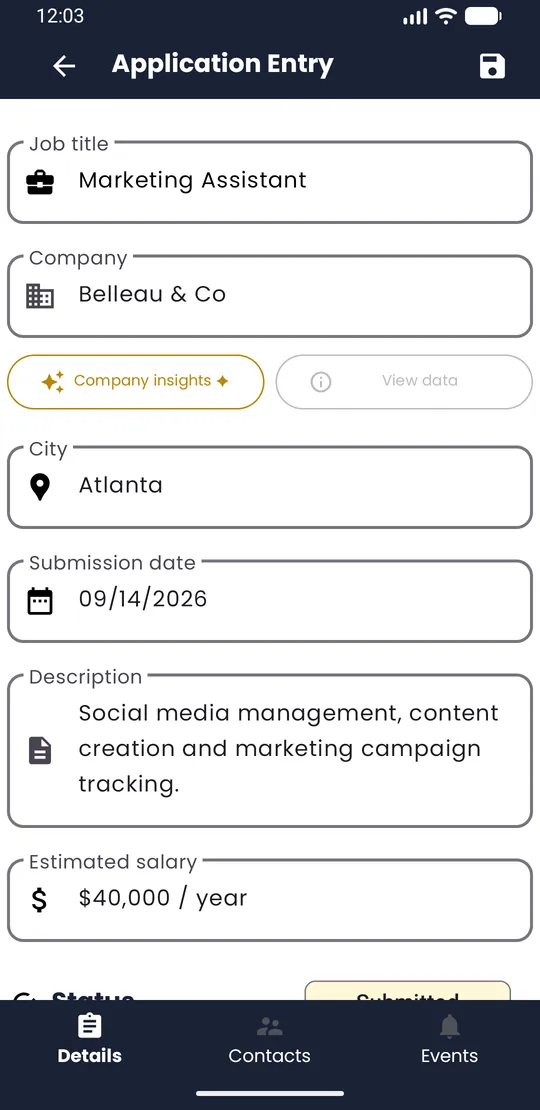
Tap the status chip
Next to Status, tap the coloured chip (it shows In progress for a new application).
-
Step 3
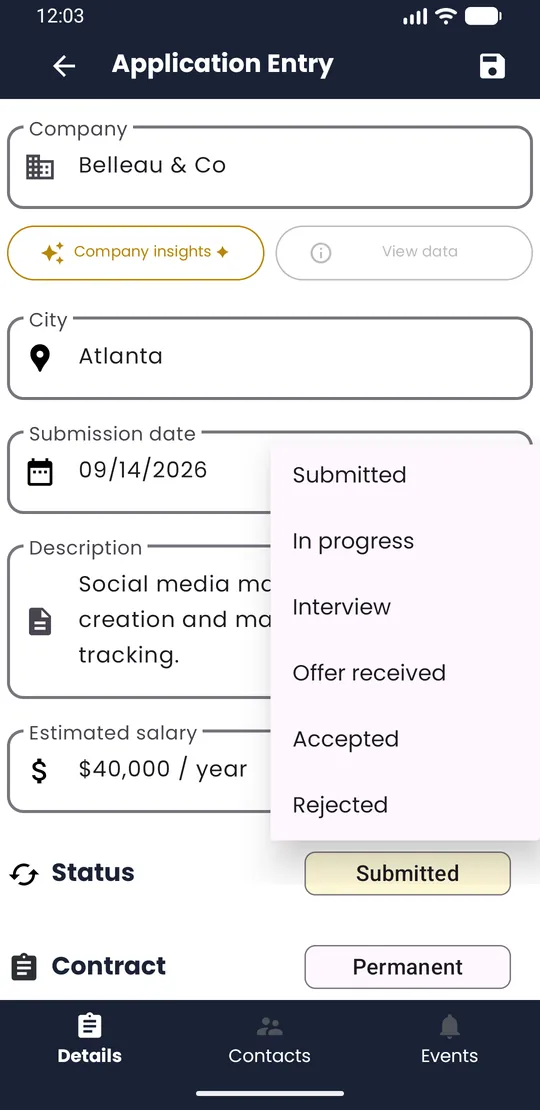
Pick the new status
Choose Submitted, In progress, Interview, Offer received, Accepted or Rejected — the six steps of a job search, in order. The chip changes colour right away.
-
Step 4
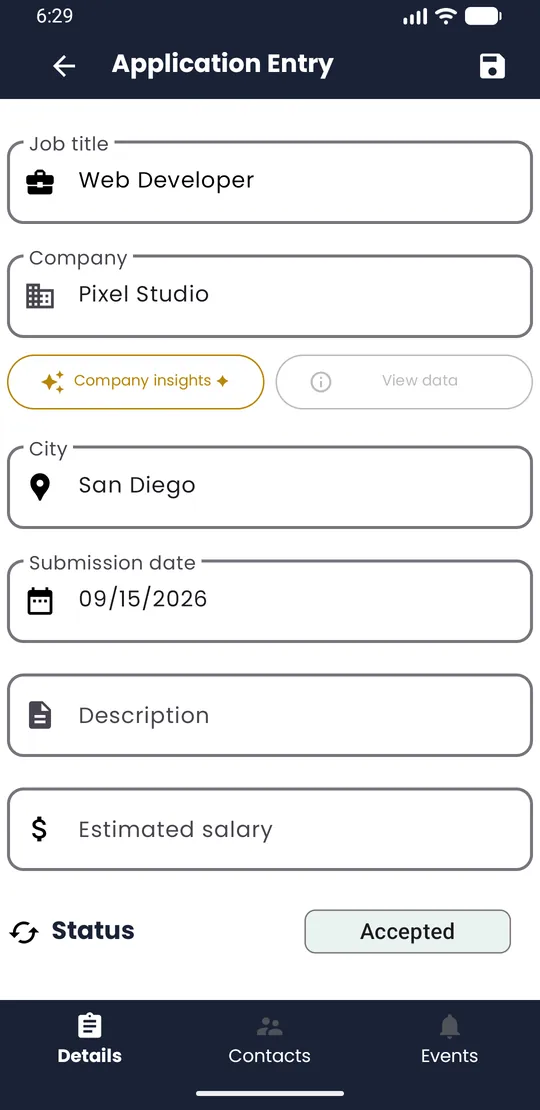
Save
Tap the save icon at the top right to keep the change.
💡 Tip · Your statuses feed the Statistics tab, so keeping them current gives you an honest picture of your search.