JobNotes


How to back up and restore your job search
JobNotes keeps your data on your phone, with no account. A backup puts everything in one file that you keep wherever you like.
-
Step 1
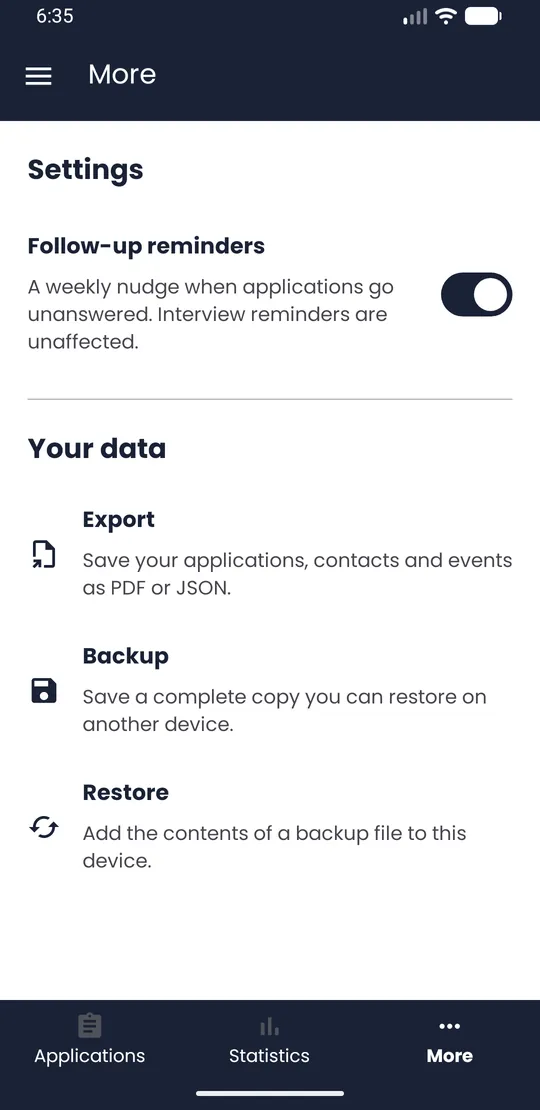
Open the More tab
In the bottom bar, tap More.
-
Step 2
Create the backup
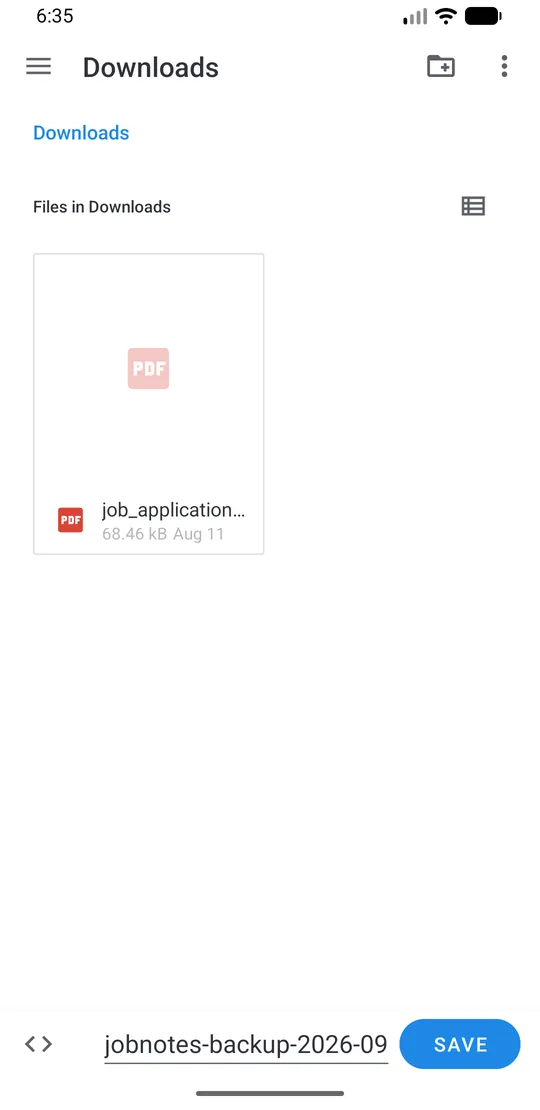
Under Your data, tap Backup. Choose a folder and save the file (it is named jobnotes-backup- followed by the date). JobNotes shows “Backup saved”.
-
Step 3
Restore on the other phone
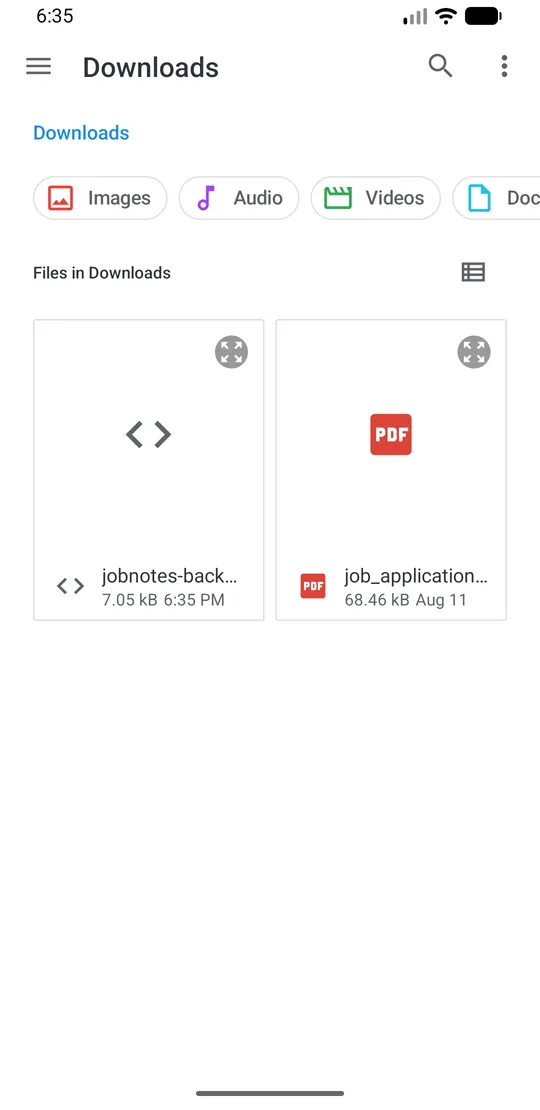
Install JobNotes on the new phone, open More, tap Restore and pick your backup file.
-
Step 4
Confirm
JobNotes shows how many applications, contacts and events the file holds. Tap Add.
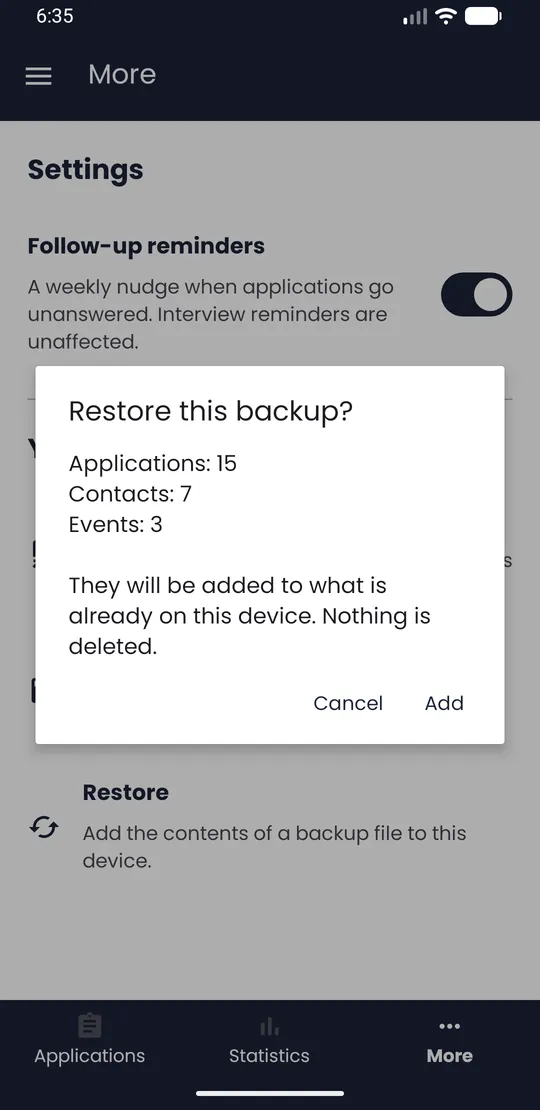
💡 Tip · Restoring adds to what is already on the phone and deletes nothing, so restore a file only once. The file is not encrypted: keep it somewhere private.