JobNotes


How to get a reminder before an interview
A reminder is set on an event you have already added: first the interview, then the bell.
-
Step 1
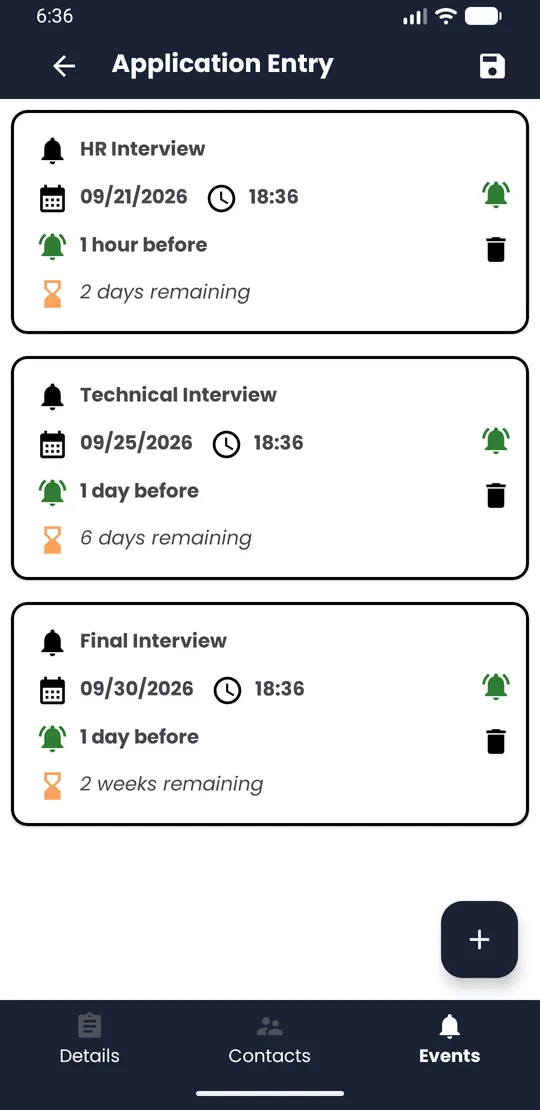
Open the application's Events
Tap the application card, then tap Events in the bar at the bottom of the application screen.
-
Step 2
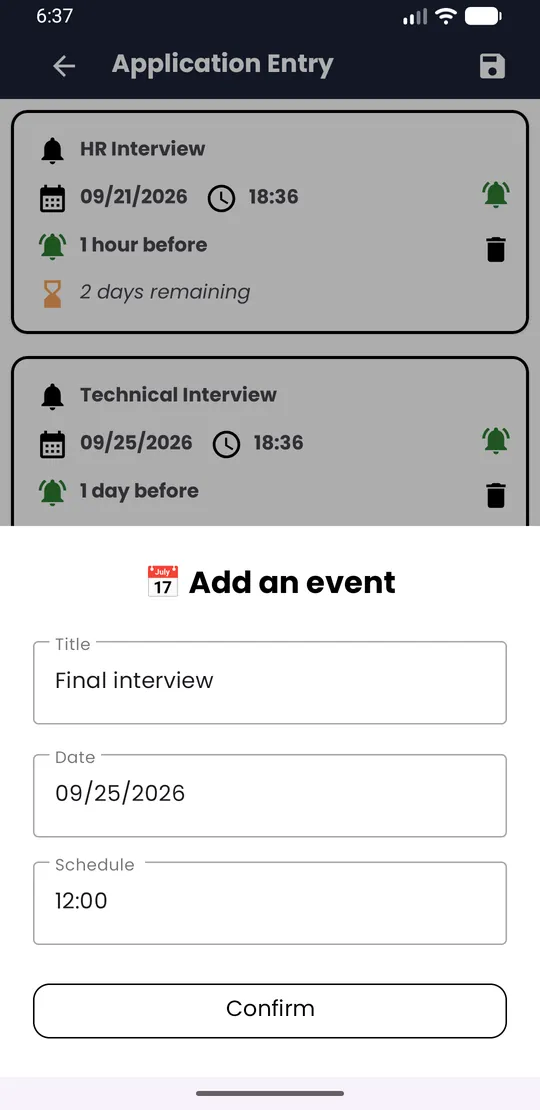
Add the interview
Tap + at the bottom right. In Add an event, enter a Title (for example “Interview”), pick the Date, then the Schedule (time). Tap Confirm.
-
Step 3
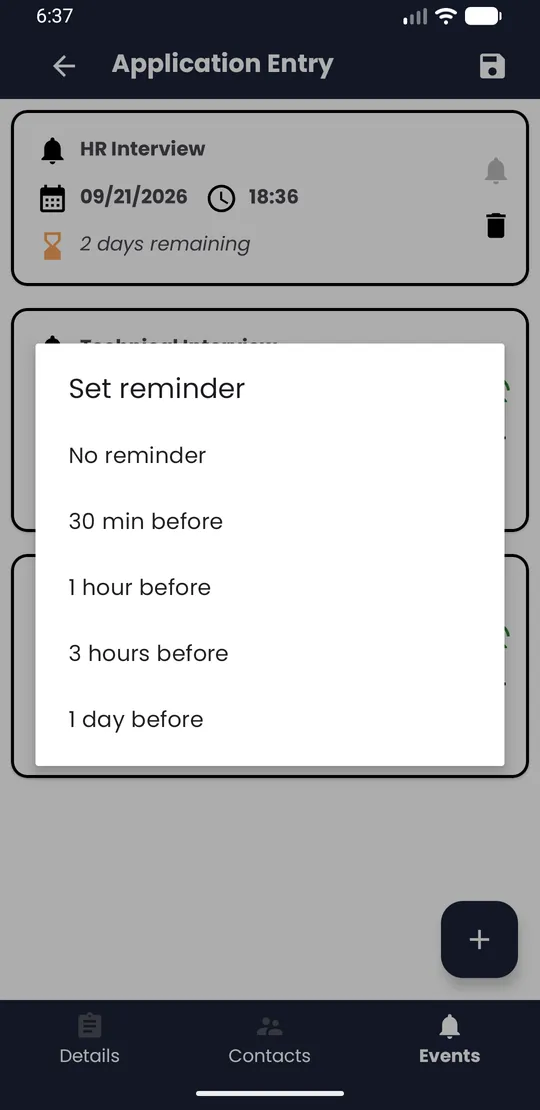
Tap the bell
On the event card, tap the bell. Choose 30 min before, 1 hour before, 3 hours before or 1 day before. The bell turns green.
💡 Tip · Pick the date first, then the time: the reminder is counted from that time. On Android 13 and later, allow notifications when asked. To turn a reminder off, tap the green bell again.